Showing posts with label feedburner. Show all posts

Monday, July 22, 2013

RSS Graffiti: Auto Publish Blog Feed To Facebook

RSS Graffiti is one of the best application on Facebook to publish the blog feeds on Facebook pages or on personal profiles. RSS Graffiti helps to updates the Facebook pages or profiles by reading data from the blog's feed. So, the primary requirement over here is to have a RSS feed system implemented on your blog from services like feed-burner etc.

We can use RSS Graffiti to accept the process feeds from various sources on to Facebook pages or profiles. It means, you can have multiple feeds and multiple pages to publish the updates using this app. And, above all this is a free app.

The automation process of your Facebook pages or profile will be helpful to keep your fans and friends updated by decreasing the workload to update the Facebook pages and profile manually.

So, let's check out- How to configure RSS Graffiti to publish the posts on Facebook pages or profile on your behalf.

Steps For Setting-Up RSS Graffiti App For Auto Publishing 


  • A pop will be displayed asking for Authorizing your Facebook account to use this app. Just click "Go to Permission Dialog"
  • Next you need to authorize the RSS Graffiti to use your public profile, friend list,email address and groups. Just click "okay"

  • Now allow the RSS Graffiti by clicking "okay" to post on your wall on your behalf.

  • Now click on "Add New Publishing Plan"


  •   Enter the name of your profile or Facebook fan page at "My publishing plan"

  • Click on "New Source" button to add the source URL basically an RSS feed URL. 

  • Click on "New Target" button to add the Facebook page on which you want automated updates from RSS feeds.

  • There are a lot of settings which you can tune up or down depending upon your particular requirements. I would suggest you too play around a little bit explore it. But, specially take care of the "Publishing Plan Frequency" depending on how often you would like RSS Graffiti to check the RSS feed for new posts.


Facebook Fan Page Configuration 
  • To update your Facebook fan pages this is the best method.
  • You can even add many other sources to create a very engaging data for the page followers so as to gain a good amount of likes. 
  • Which in turn will help you boost your blog traffic.
So far this is the app which I'm personally using on my various Facebook Fan Pages on various niches. 


If you have any doubts or suggestions. Please comment below.

Tuesday, June 4, 2013

Setting up Feedburner RSS and Email subscription for your blog

Lots of people have been asking me about RSS feeds and Feedburner over the past few weeks.
So I’ve decided it’s time to update my ‘how to’ Feedburner info so that:
  1. All the required instructions are in one post
  2. It is current for the latest version of Edublogs and Feedburner

What is RSS?


The easiest way to receive latest posts from your favorite blogs is to subscribe to RSS using feed readers such as Google Reader, Bloglines, NetVibes.
RSS (means Really Simple Syndication) retrieves the latest content from the sites you are interested and pulls them into your feed reader where you can read them all in one location rather than visiting each site separately.
The presence of the orange RSS icon indicates a site has an RSS feed and means you can subscribe to it using a feed reader.

What is FeedBurner?

Most blogs have RSS feed which is detected automatically by commonly used feed readers when the blog URL is added to the reader.
However, if you want to make it more obvious and easier for readers to subscribe using RSS, or want to know exactly how many people subscribe to your blog  then the best option is to add a Feedburner RSS feed and email subscription to your blog.
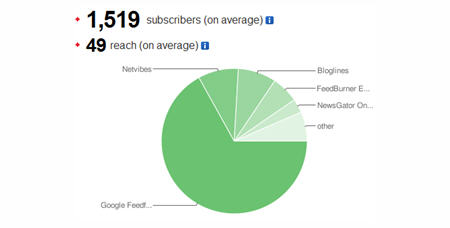
Feedburner is a free web service which enhances bloggers and podcasters ability to manage their RSS feeds and track usage of their subscribers.Subscriber overview inside a Feedburner account

Setting Up Your Feedburner Feed

1.  Go to Feedburner and sign in to Feedburner with your Google Account (create a Google Account first if you don’t have one!).
2.  Add your Blog URL to the Burn a Feed Right This Instant and click Next.
Burning a Feedburner Feed
3.  Leave RSS 2.0 source selected and click Next.
Selecting the RSS feed source
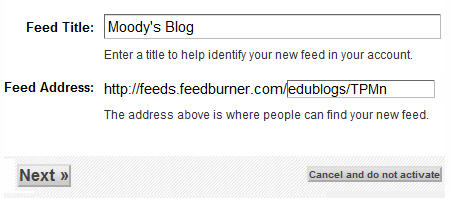
4.  On “Welcome” page, make sure you are happy with the title and FeedBurner address (URI) of your new feed and then click Next.Feedburner title and URL
5.  On the Congrats! page click Next
6.  On the stats configuration page select Clickthroughs and I want more! and then clickNext.
Selecting your Feedburner Stats options

Adding Your Feedburner Feed To Your Blog

This is used to add the RSS icon and easy subscribe options to your blog side bar using a text widget as explained below:
Example of Feedburner RSS feed in a blog sidebar
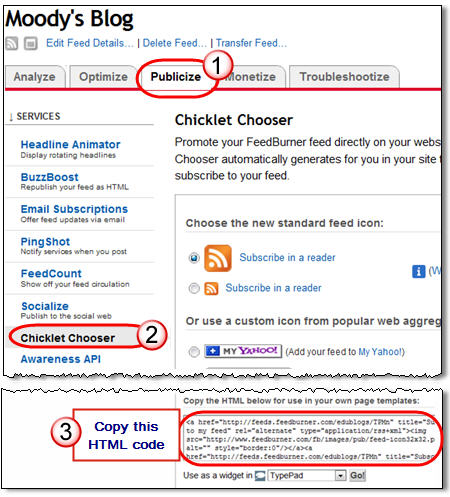
1.  Click on the Publicize Tab > Chicklet Chooser in your Feedburner account and copy the HTML code.
Copying the HTML code for your Feedburner Feed
2.  Go to Appearance > Widgets in your blog dashboard
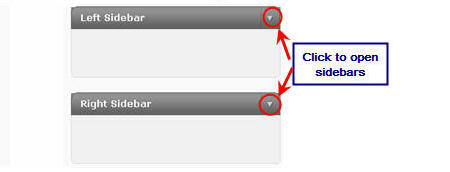
3.  Click on the desired Sidebar to expand (so you can add the widgets) Please note: In new blogs sidebars in your dashboard are empty and adding widgets automatically removes the default Edublogs widgets
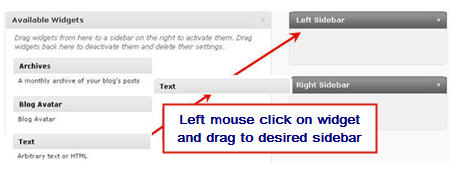
4.  Add a text widget to the desired sidebar by dragging it from the Available Widgets into the Sidebar area on the right.
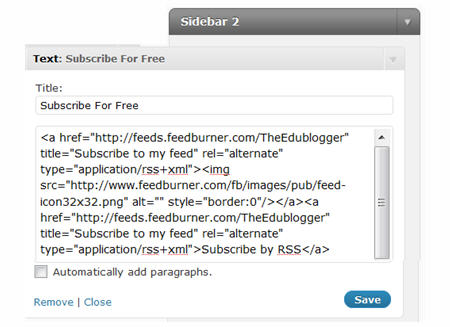
5.  The widget will automatically open — just add the HTML code from FeedBurner, click Saveand then Close.

Adding Feedburner HTML to Text widget

Adding a FeedBurner Email Subscription

It’s important to add an email subscription option to your blog sidebar as some readers prefer to receive latest posts from blogs using email subscription.
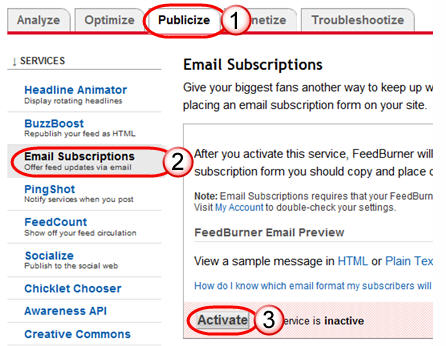
1.  Click on the Publicize Tab > Email Subscription in your Feedburner account and click onActivate.
Activating FeedBurner Email subscription
2.   Copy the HTML code.
Copy Feedburner email HTML code
3.  Go to Appearance > Widgets in your blog dashboard
4.  Click on the desired Sidebar to expand (so you can add the widgets)
5.  Add a text widget to the desired sidebar by dragging it from the Available Widgets into the Sidebar area on the right.
6.  The widget will automatically open — just add the HTML code for Feedburner email subscription, click Save and then Close.
7.  Now readers simply enter their email address and then click on “Subscribe” and Feedburner emails your entire post to them on the day after it has been published on your blog.

Redirecting All Your Blog Feed To Feedburner

Unless you redirect all your blog feed to Feedburner you won’t get accurate subscriber numbers because some of your readers subscribe using your original blog feed.
If you’re an Edublogs supporter you can redirect your blog feed  as follows:
1.  Go to Settings > Feedburner in your blog dashboard
2.  Add your Feedburner address and click Save Changes.
Redirecting feed to FeedBurner
3.  Now all your feeds is automatically redirected through FeedBurner and you’ll be able to track subscriber numbers accurately.

If you are enjoying reading this blog, please consider feed-icon32x32 Finding and Adding Creative Commons Images To Your Blog PostsSubscribing For Free!